
1. Install the official extension
Before starting, confirm that you use VS Code 1.98 or later and complete the Claude Code setup. In the editor’s Extensions view, search for Claude Code and confirm that the publisher is Anthropic. You can also use the official VS Code guide. Open Extensions with Cmd+Shift+X on macOS or Ctrl+Shift+X on Windows and Linux.2. Reuse the user-level NexusAPI configuration
The extension reads the same~/.claude/settings.json (or Windows user-profile equivalent) as the CLI. Do not duplicate the NexusAPI key in VS Code or Cursor workspace settings.
If the editor still shows a sign-in prompt:
- Check that the extension is up to date.
- If the current release provides Disable Login Prompt, search editor settings for
Claude Code loginand enable it. - Fully restart the editor. If that setting is unavailable, verify the user-level configuration first by running
claudein the integrated terminal.
.vscode/settings.json, and do not sync, screenshot, or commit a settings file containing it. Keep the key only in the user-level ~/.claude/settings.json.
If a current Cursor release cannot install the extension, run claude in Cursor’s integrated terminal and keep the same user-level Claude Code configuration.
3. Open Claude Code
You can open the extension from its top-right editor icon, the Activity Bar, the Command Palette, or the status bar. If the icon is absent, open a code file first; the extension can show that entry point only after a file is open.4. Verify with a safe request
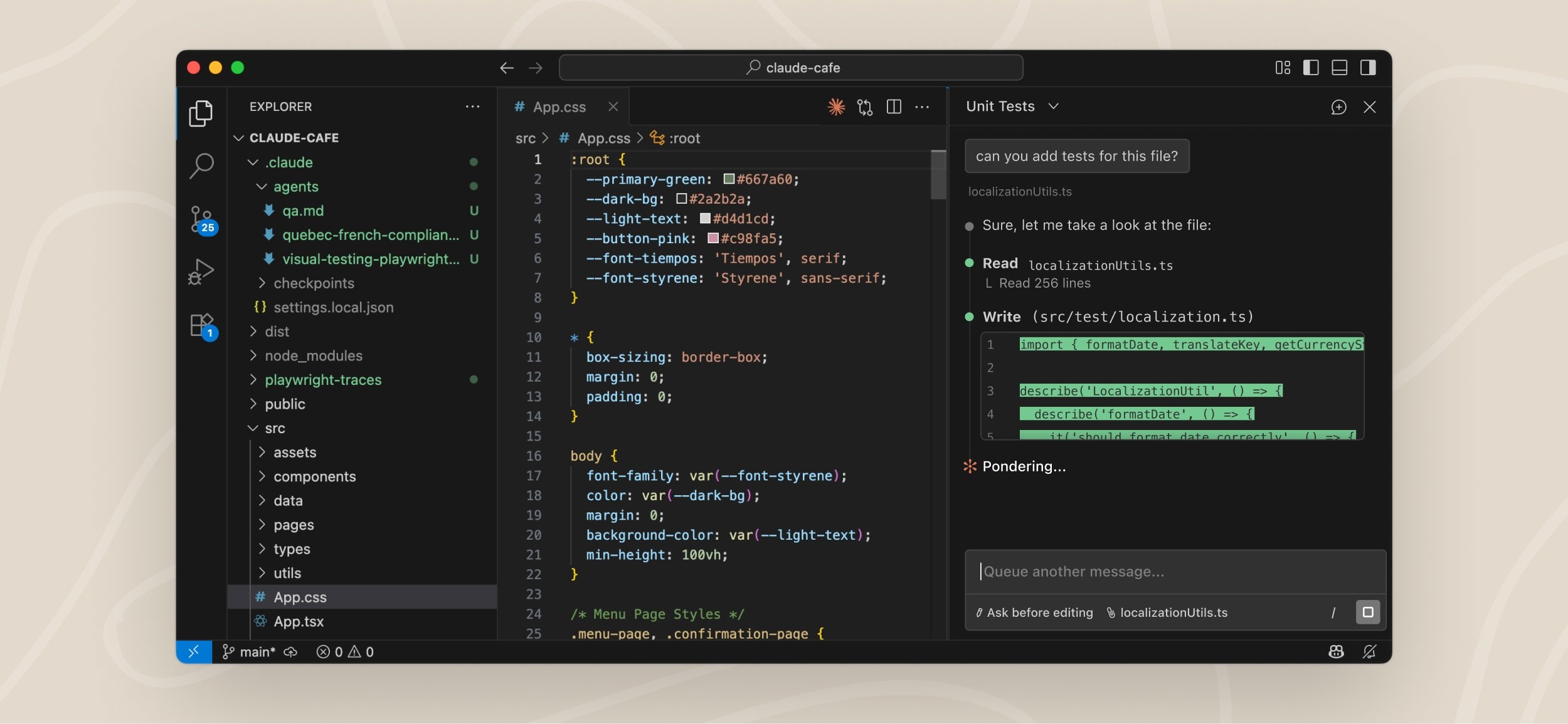
The example interface is from the official Claude Code VS Code documentation. Button locations can change with extension releases.Send a read-only test such as:
/status and verify that Anthropic base URL is https://nexusapi.link, then verify one matching entry in the NexusAPI usage log.
Troubleshooting
The extension does not appear
Run Developer: Reload Window from the Command Palette or fully restart the editor.The CLI works but the extension does not
Confirm that~/.claude/settings.json is in the user directory, not the project directory. Recheck its Base URL and key; if the current release provides Disable Login Prompt, enable it and fully restart the editor.
Cursor cannot find the extension
Use the Cursor entry point in the official VS Code guide. If this Cursor release does not support it, useclaude from its integrated terminal instead.
For persistent errors, retain the editor, extension, and Claude Code versions, the original error, and the Request ID, then use self-check.
Never send a full API key, workspace secret, or private source file to support.