> ## Documentation Index
> Fetch the complete documentation index at: https://docs.nexusapi.link/llms.txt
> Use this file to discover all available pages before exploring further.
# 在 VS Code、Cursor 中使用 Claude Code
> NexusAPI:在 VS Code、Cursor 中使用 Claude Code
Claude Code 官方扩展提供图形化对话、代码差异预览、文件引用和权限确认。
VS Code 与 Cursor 的配置方式基本一致。
## 1. 安装扩展
开始前请确认:
* VS Code 版本为 1.98 或更高版本。
* 已按 [Claude Code 教程](/tools/claude-code) 配置 NexusAPI。
* `~/.claude/settings.json` 中的 API Key 和 Base URL 已生效。
打开扩展商店:
* macOS:`Cmd + Shift + X`
* Windows / Linux:`Ctrl + Shift + X`
搜索 `Claude Code`,确认发布者是 **Anthropic** 后再安装。也可以从
[Claude Code 官方 VS Code 指南](https://code.claude.com/docs/en/vs-code)
进入 VS Code 或 Cursor 的安装入口。
**核对发布者**
扩展商店中可能存在名称相近的第三方扩展。安装前请确认扩展名称为
`Claude Code`、发布者为 `Anthropic`。
## 2. 让扩展使用 NexusAPI
Claude Code CLI 可读取 `~/.claude/settings.json`,但 VS Code 扩展会在启动前检查编辑器自己的网关变量。为保证扩展稳定使用 NexusAPI,请打开命令面板并执行 **Preferences: Open User Settings (JSON)**,加入以下配置:
```json theme={"system"}
{
"claudeCode.environmentVariables": [
{ "name": "ANTHROPIC_BASE_URL", "value": "https://nexusapi.link" },
{ "name": "ANTHROPIC_AUTH_TOKEN", "value": "sk-您的 NexusAPI API Key" }
]
}
```
如果已有 `claudeCode.environmentVariables`,请合并数组,不要覆盖其他配置。保存后完全重启编辑器。
**保护编辑器中的 Key**
这里只能填写用户本机的 **User Settings**,不要写入项目目录的 `.vscode/settings.json`,也不要把含 Key 的设置同步、截图或提交到 Git。
Cursor 能安装 Claude Code 扩展时可使用同样的用户级设置;如果当前 Cursor 版本不支持该扩展,请在 Cursor 的集成终端中运行 `claude`,并按[Claude Code 教程](/tools/claude-code)配置用户目录中的设置文件。
## 3. 打开 Claude Code
安装完成后,可以通过以下任一方式打开:
* 点击编辑器右上角的 Claude Code 星形图标。
* 点击左侧活动栏中的 Claude Code 图标。
* 打开命令面板,搜索 `Claude Code`。
* 点击右下角状态栏中的 `Claude Code`。
如果右上角没有图标,请先打开一个代码文件;该图标可能只在文件打开后显示。
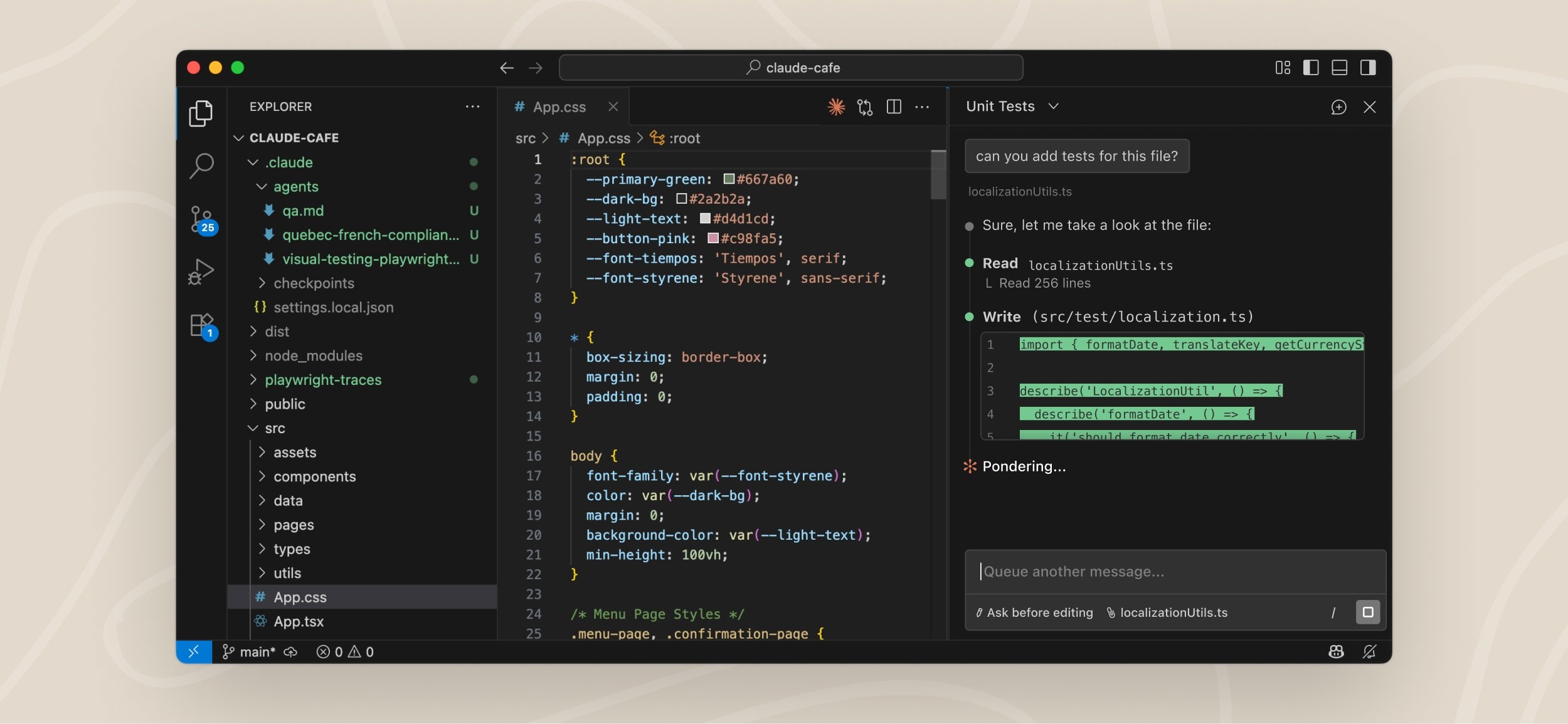 > 界面示例来自
> [Claude Code 官方 VS Code 文档](https://code.claude.com/docs/en/vs-code)。
> 具体按钮位置可能随扩展版本更新。
## 4. 验证配置
在扩展中发送一个简单请求,例如:
```text theme={"system"}
请解释当前打开文件的作用,不要修改代码。
```
能正常返回后,再输入 `/status`,确认显示的 `Anthropic base URL` 为 `https://nexusapi.link`。遇到错误时,请保留:
* 编辑器和扩展版本
* Claude Code 版本
* 错误原文
* Request ID
然后参考[问题自查](/faq/self-check)。
## 常见问题
### 扩展安装后没有出现
运行命令面板中的 `Developer: Reload Window`,或完整重启编辑器。
### CLI 能用,但扩展不能用
确认 `claudeCode.environmentVariables` 已保存在编辑器的用户级设置中,并检查其中的 Base URL 和 Key 是否正确。扩展不会总是继承从终端启动时的环境变量。
### Cursor 扩展商店找不到
可从 Claude Code 官方 VS Code 指南进入 Cursor 安装入口;如果当前 Cursor
版本不支持该扩展,仍可在 Cursor 的集成终端中运行 `claude`。
> 界面示例来自
> [Claude Code 官方 VS Code 文档](https://code.claude.com/docs/en/vs-code)。
> 具体按钮位置可能随扩展版本更新。
## 4. 验证配置
在扩展中发送一个简单请求,例如:
```text theme={"system"}
请解释当前打开文件的作用,不要修改代码。
```
能正常返回后,再输入 `/status`,确认显示的 `Anthropic base URL` 为 `https://nexusapi.link`。遇到错误时,请保留:
* 编辑器和扩展版本
* Claude Code 版本
* 错误原文
* Request ID
然后参考[问题自查](/faq/self-check)。
## 常见问题
### 扩展安装后没有出现
运行命令面板中的 `Developer: Reload Window`,或完整重启编辑器。
### CLI 能用,但扩展不能用
确认 `claudeCode.environmentVariables` 已保存在编辑器的用户级设置中,并检查其中的 Base URL 和 Key 是否正确。扩展不会总是继承从终端启动时的环境变量。
### Cursor 扩展商店找不到
可从 Claude Code 官方 VS Code 指南进入 Cursor 安装入口;如果当前 Cursor
版本不支持该扩展,仍可在 Cursor 的集成终端中运行 `claude`。